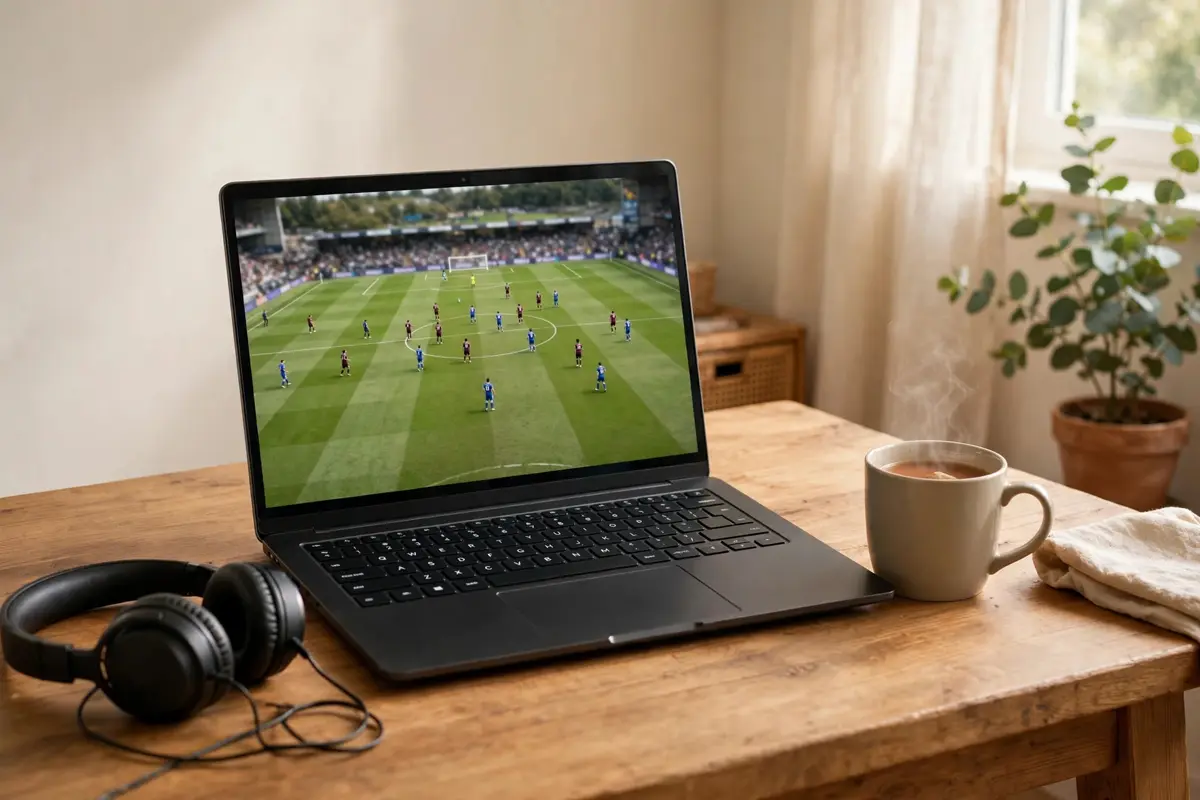
Not every screen in the house needs a TV or a streaming stick. If you have a laptop, you already have a screen you can watch IPTV on — in the kitchen, in bed, in a hotel room or at a desk. On a laptop, UK Fire TV works through VLC Media Player, a free and very widely used video player. There is no separate laptop app to buy or install from us: you install VLC once, paste in the link we send you, and press Play. This guide walks through it step by step.
What you need
- A laptop connected to the internet
- VLC Media Player (free — see Step 1)
- The stream link we send you (see Step 2)
- A few minutes, the first time only
The setup, step by step
Step 1: Install VLC Media Player
If VLC is not already on your laptop, download and install it first. VLC is free, and the standard installation is all you need — no paid version, no add-ons. Once it is installed, you will recognise it by its orange traffic cone icon. If VLC is already installed, it is worth opening it once and letting it update if it offers to, so you are on a recent version before you start.
Step 2: Message us for your link
Our setup always starts the same way: send us a message on WhatsApp through ukfiretv.com and tell us you want to watch on a laptop. We will send you the link your laptop needs, along with the details for your plan or free trial. Keep that message handy — you will copy the link from it in Step 4. Copying and pasting is much more reliable than typing a long link out by hand, so do not retype it if you can avoid it.
Step 3: Open VLC and find "Open Network Stream"
Open VLC on your laptop. In the menu bar at the top, click Media. In the menu that drops down, click Open Network Stream. A window will open with a box for a network address or URL. This is how VLC plays anything that is streamed over the internet rather than saved as a file on your computer — which is exactly what your IPTV link is.
Step 4: Paste the link and press Play
Click into the address box in that window and paste the link we sent you — the whole link, from the beginning to the very end, with nothing added and nothing missing. Then click Play. Give it a few seconds to connect, and your stream will start playing in the VLC window. That is the whole setup: VLC remembers nothing you need to re-enter each time beyond this, and the same short process is summarised on our IPTV installation guide.
Step 5: Watching comfortably
Once the stream is playing, you can resize the VLC window like any other app, or watch full screen — double-click the picture, or use the full-screen button, to fill the laptop screen. The spacebar pauses and resumes, and the volume slider is at the bottom of the player. If you want to watch again later, just open VLC, go back to Media → Open Network Stream, paste the link again if it is not still there, and press Play.
If the stream does not start
- Nothing happens after Play: the link is usually incomplete. Go back to our message, copy the link again in full, and paste it into a fresh Open Network Stream window.
- VLC reports it cannot open the stream: check the laptop is actually online by opening any website, then try again.
- It worked before but not now: close VLC completely, reopen it, and repeat Step 4. A restart clears most one-off glitches.
- Still not playing: send us a message on WhatsApp and tell us what VLC says on screen — an error message helps us point you to the right fix.
Your laptop as one of your devices
Watching on a laptop counts as one of your devices, and our plans cover 1, 2 or 3 devices watching at the same time — so a laptop can sit alongside a Firestick or Smart TV on the same plan. If you are deciding how many devices your household needs, see IPTV subscription prices, and for the other screens you can use, from phones to Smart TVs, see our devices you can watch on page. Common questions are answered on our frequently asked questions page.