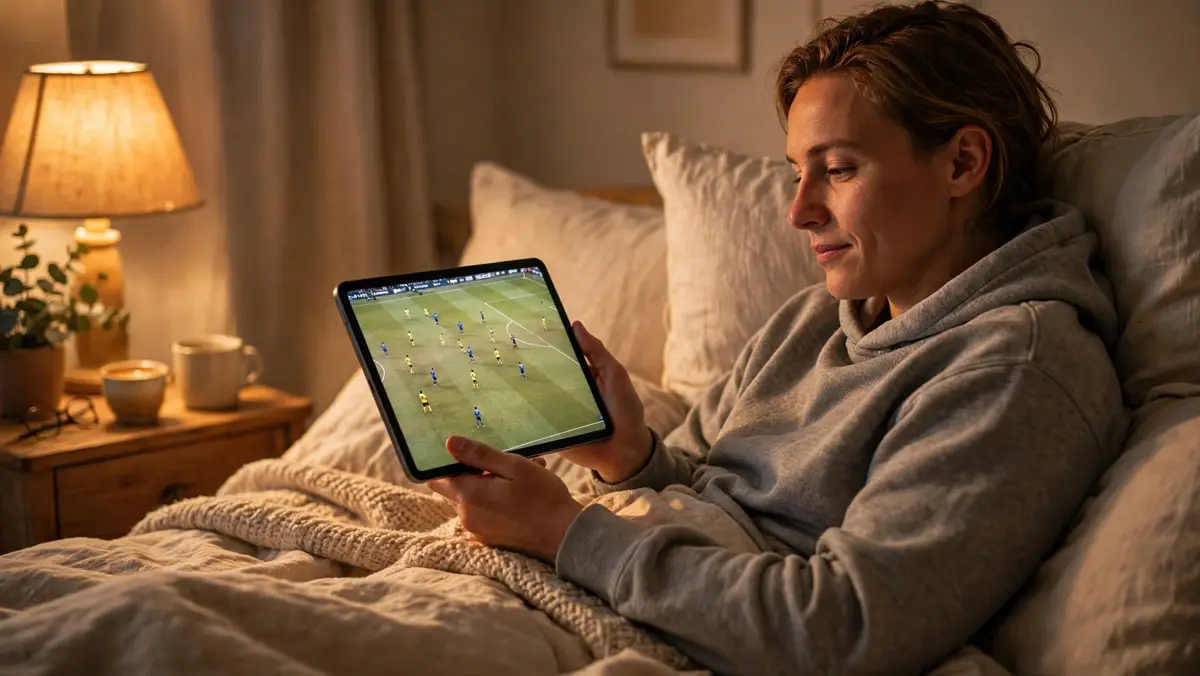
Your iPhone or iPad might be the easiest screen you own for IPTV — it's the one that's already in your hand, in the kitchen, in bed, or on the train. With UK Fire TV, watching on iOS uses the Supa Legacy IPTV app from the App Store: you message us, we send your login, you install the app, enter our provider code, sign in and watch. This guide walks through the setup and a few things worth knowing about watching on the move.
What you need
Just your iPhone or iPad connected to the internet, and a few spare minutes. There's no extra hardware and nothing to buy — your phone or tablet is one of the devices on your plan, covered by the same options on our IPTV subscription prices page, whether that's a plan for 1, 2 or 3 devices watching at the same time.
The setup, step by step
Step 1: Message us first
Send us a message on WhatsApp through ukfiretv.com and tell us you want to watch on iPhone or iPad. Once your plan or free trial is arranged, we'll send you the username and password you'll sign in with. For iPhone and iPad we use the Supa Legacy IPTV app, so there's no need to pick a random player app from the store — the steps below use that app.
Step 2: Install the Supa Legacy IPTV app
Open the App Store on your iPhone or iPad, search for Supa Legacy IPTV (by Shaker Hussain) and install it. It's a standard App Store install — the same as any other app. If you're setting up more than one Apple device, you'll need the app on each one, but they can all use the same plan within your device allowance.
Step 3: Enter the provider code
Open the app and tap Provider Code on the sign-in screen. Enter the code 2580 and continue. This connects the app to our service, ready for your sign-in.
Step 4: Sign in with the details we sent you
Enter the username and password we sent you. Type them exactly as they appear in our message — passwords are case-sensitive, and an accidental space at the start or end is the most common reason a first sign-in fails. If you're copying and pasting from our message, that avoids the problem altogether.
Step 5: Start watching
That's the setup done. Your content loads inside the app, browsable by category, and from then on you just tap the app whenever you want to watch. The same order — message, install, sign in, watch — is summarised on our IPTV installation guide, alongside the steps for every other device.
Watching away from home
Because your iPhone or iPad travels with you, it's the natural screen for watching away from the sofa — another room, the garden, a hotel, or visiting family. As long as the device is online, you sign in exactly as you do at home; there's nothing extra to set up for a different location. Just remember that an iPad on a train counts as one of your plan's devices while you're watching on it, the same as any other screen.
Wi-Fi or mobile data?
At home, Wi-Fi is the obvious choice and costs you nothing in data. On the move, mobile data works too, but it's worth being thoughtful about it: video streaming uses data at a rate that can vary a lot with picture quality and how long you watch, so a long session on mobile data can make a noticeable dent in a monthly allowance. As a general rule, use Wi-Fi for longer watching when you can — a hotel, café or family member's connection is ideal — and keep mobile data for shorter sessions, or lower the picture quality in the app's settings if it offers that option and you're watching on data for a while.
Small tips for a smooth experience
- Keep the app and iOS reasonably up to date. Older app versions are a common cause of sign-in oddities and playback glitches.
- Restart the app fully if it misbehaves. Swipe it away from the app switcher and reopen it before trying anything more drastic.
- Sign-in problems are usually typing problems. Retype your details slowly, watching for capital letters and spaces, before assuming anything bigger is wrong.
- On iPad, rotate and settle in. The bigger screen makes the iPad the closest thing to a portable TV — worth choosing over the phone for films when both are to hand.
Watching on your other screens too
Your iPhone or iPad can sit alongside a Firestick, Smart TV, Android phone, Mac or laptop on the same plan — each device has its own app or setup, which we send you when you need it. See the full list on our devices you can watch on page, and if you have questions before you start, the ones we hear most are answered on our frequently asked questions page.