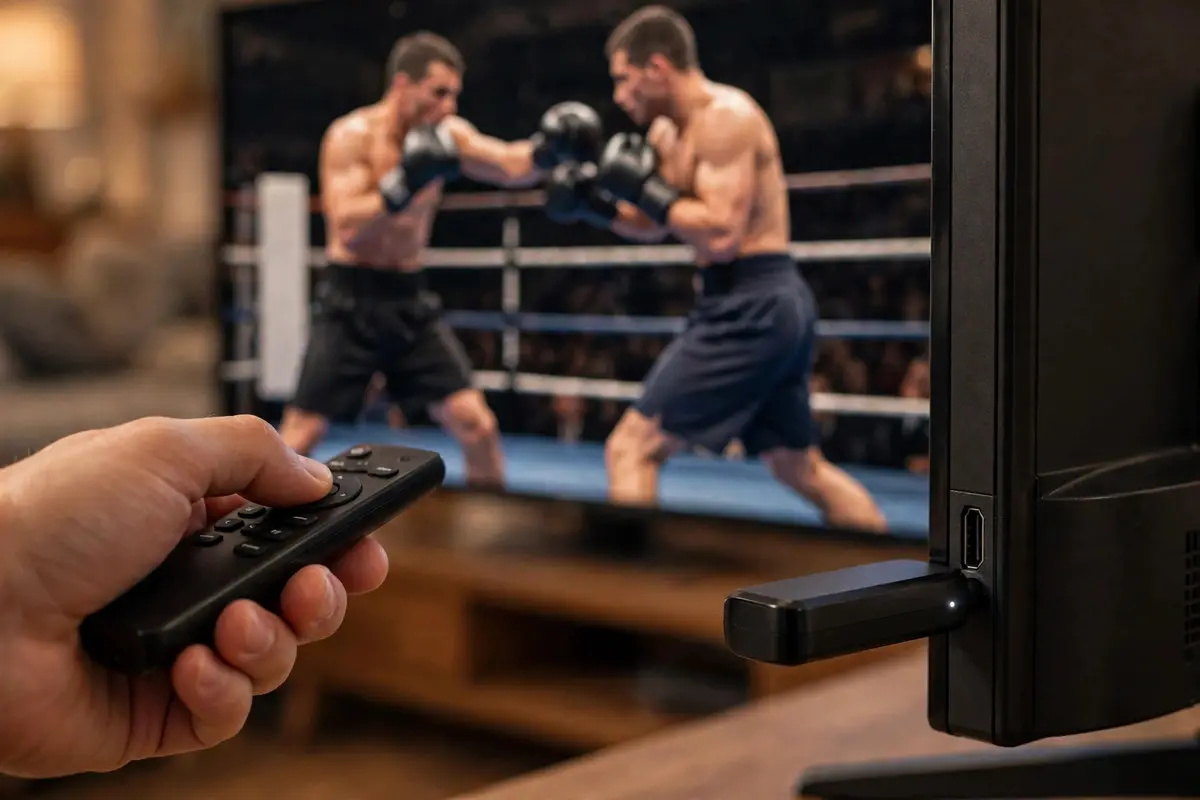
The Amazon Firestick is one of the easiest devices to watch IPTV on, and setting it up is mostly a one-time job. You do not need any technical experience — if you can install an app and type in a code, you can do this. The whole process follows the same order for every UK Fire TV customer: you message us, we send you what your Firestick needs, you install it, sign in with the details we provide, and watch. Here is each step in full.
Before you start
Make sure your Firestick is plugged in, connected to your TV and online. You will also need the Downloader app, which is free from the Firestick's own app store — search for "Downloader" on the home screen and install it if it is not already there. Finally, keep your phone nearby, because the first step happens on WhatsApp.
The setup, step by step
Step 1: Message us first
Everything starts with a message. Send us a WhatsApp message through ukfiretv.com and tell us you want to watch on a Firestick. We will reply with the download address for the Firestick app and, once your plan or free trial is set up, the username and password you will sign in with. The Firestick uses its own app — different from the Smart TV app — so it is important to use the one we send you for this device.
Step 2: Turn on "Install unknown apps" for Downloader
The Firestick blocks apps installed through Downloader until you allow them, so this setting has to be switched on first:
- From the Firestick home screen, open Settings.
- Go to My Fire TV, then Developer options.
- Open Install unknown apps.
- Find Downloader in the list and switch it On.
If you cannot see Developer options at all, open Settings → My Fire TV → About and click on your Fire TV's name several times — the Developer options menu will then appear back in the My Fire TV list.
Step 3: Enter the download address in Downloader
Open the Downloader app and type in the download address we gave you in Step 1, exactly as it was sent — every letter and number matters, and there should be no spaces. Then confirm to start the download. The Firestick app will download onto your device.
Step 4: Accept the terms and tap "Allow"
As the app finishes downloading and opens for the first time, accept the terms and conditions and tap "Allow" when it asks for access to your media files — this is required for the app to run smoothly — then choose Open once it has finished. Do not skip the "Allow" tap: the app needs that permission to work properly, and skipping it is a common reason for problems straight after installing.
Step 5: Sign in with the details we provided
When the app opens, sign in with the username and password we sent you. Type them carefully — passwords are case-sensitive, and an extra space at the end can stop the sign-in from working. If you are starting with the free trial, use the details we gave you for the trial in exactly the same way.
Step 6: Start watching
That is the setup complete. Your channels and content will load inside the app, and from now on you simply open the app on your Firestick whenever you want to watch. This same order — install, sign in, watch — is also summarised on our IPTV installation guide.
If something does not work
- The download does not start: check the address letter by letter against the one we sent you, and make sure your Firestick is connected to the internet.
- The app opens but does not run smoothly: you may have skipped the media permission in Step 4. The app needs you to accept the terms and tap "Allow" for access to your media files, so go back and allow it.
- Sign-in fails: retype your username and password slowly, watching for capital letters and spaces.
- Still stuck: unplug the Firestick for 30 seconds, plug it back in and try again — then message us on WhatsApp if it is still not working.
Watching on something else as well?
A Firestick plan can cover more than one screen: our plans run on 1, 2 or 3 devices at the same time, and your other screens can be a Smart TV, phone, tablet, Mac or laptop. Each type of device has its own app or setup, which we send you when you need it. See the full list on our devices you can watch on page, and check IPTV subscription prices if you want to add more devices to your plan.